Support
Onsight NOW
Technical Documentation
-
Document Downloads (Modal)
Below are links to the most recent version of Onsight NOW guides.
- Onsight NOW Admin Guide (4.7 MB)
- Onsight NOW Firewall Proxy Guide (331 KB)
- Onsight NOW Divisions App Note (1.6 MB)
Note: The user guide is available within the Onsight NOW application.

Onsight Connect v11.4.18
Windows v11.4.18(55050)
-
Software Downloads (Modal)
Below are links to the most recent version of Onsight Connect for Windows software.
Onsight Connect for Windows v11.4.18.55050
- Onsight Launcher (365 KB)
- Download and run to install Onsight Connect from Onsight Platform Manager
- Onsight Connect Update Package – ZIP file (130 MB)
- Onsight Connect Deploy Package – ZIP file (For On Premises customers only 164 KB)
- Onsight Connect for Windows CD image – ISO file (391 MB)
- Enterprise Software update packages including the Silent Install package
- Installation instructions
For older versions please visit the Onsight Connect for Windows Software ArchiveNOTE:For customers running Onsight Connect using Enterprise License Keys, you may be required to enter a Release Key after you install. Librestream recommends that you contact Support prior to upgrading to discuss or email release.key@librestream.com to request a Release Key. Your current Serial Number is required when making a Release Key request; it is listed under Tools-Support Information.
Onsight Connect Hosted Service users (Onsight Platform Manager) do not require a Release Key to upgrade. They will automatically see an update notice when logging into their current version of Onsight Connect. These users do not typically need to access the software from the links above, OPM will provide the update directly to them.
- Onsight Launcher (365 KB)
-
Software Requirements (Modal)
The minimum requirements for installation on a PC are:
Operating System: Microsoft Windows1 102, 8.1, and 8. Disk space: Up to 120 MB required (if Microsoft DirectX, Microsoft .NET Framework, and the required Visual C++ runtime components are not already installed). Network: Wired 10/100 Ethernet port. For wireless network connections 2.4GHz is not recommended. Video Card: OpenGL v2.0 .Net Framework 4.5 Audio support: For voice and audio support, the computer must have a microphone and speakers and/or headset and/or external speakerphone. Processor speed: 2 GHz Memory: 2 GB recommended 1Windows 7 is not supported by v11.2. The last supported version is v11.0.1.6591.
2Windows 10 is the minimum Operating System required to use the Cube-R or Cube-EX. You may required to update your Bluetooth drivers to increase performance.
- User Manual and Tool Tips are included in the application, press ‘Help’ on the dashboard to display. (v7.1 and higher)
- Onsight Connect User Guide (PDF)
- Onsight Connect for Web User Guide (PDF)
- Standard vs Enterprise Software Install (PDF)
Android v11.4.18(53871)
-
Google Play Store Download Instructions (Modal)
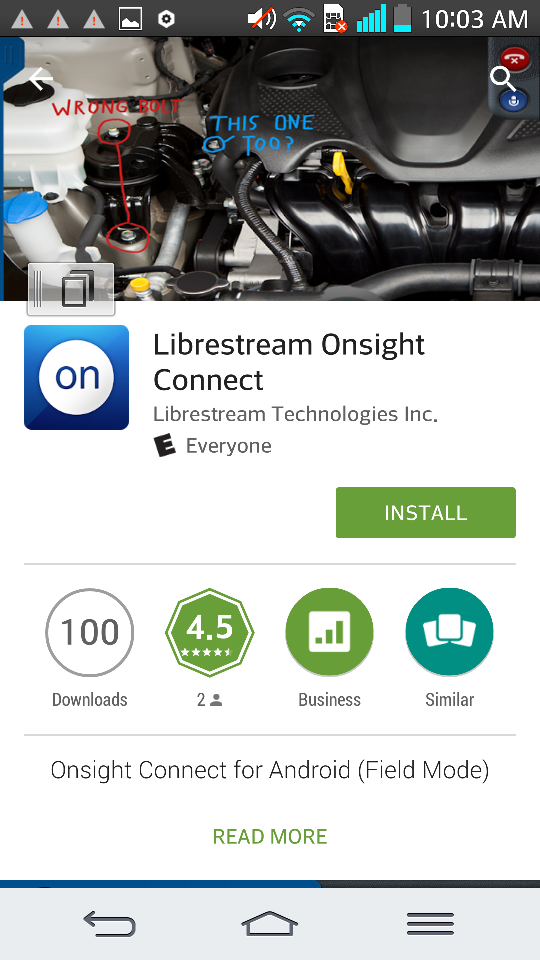
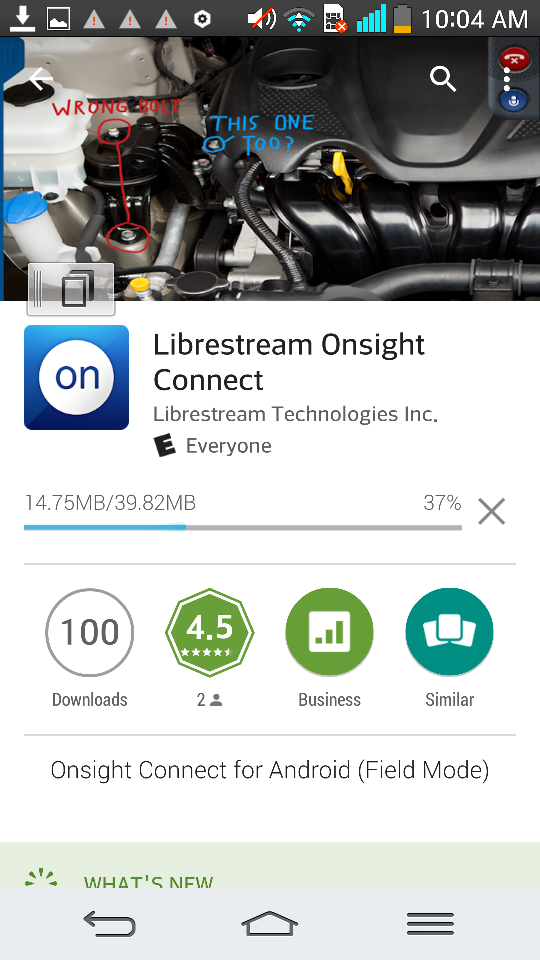
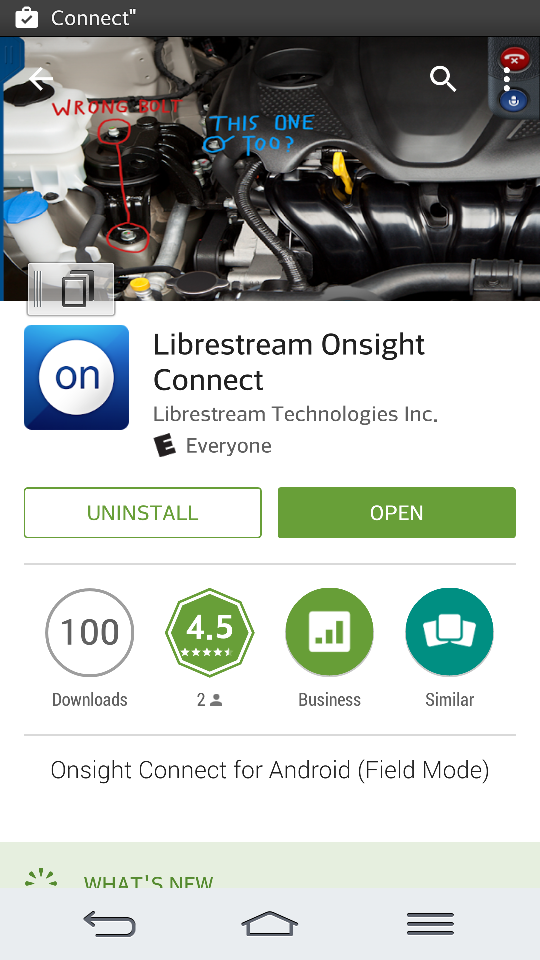
Please perform the following steps to install Onsight Connect for Android from the Google Playstore:
- Get Onsight Connect from the Playstore. Tap the “Install” button.

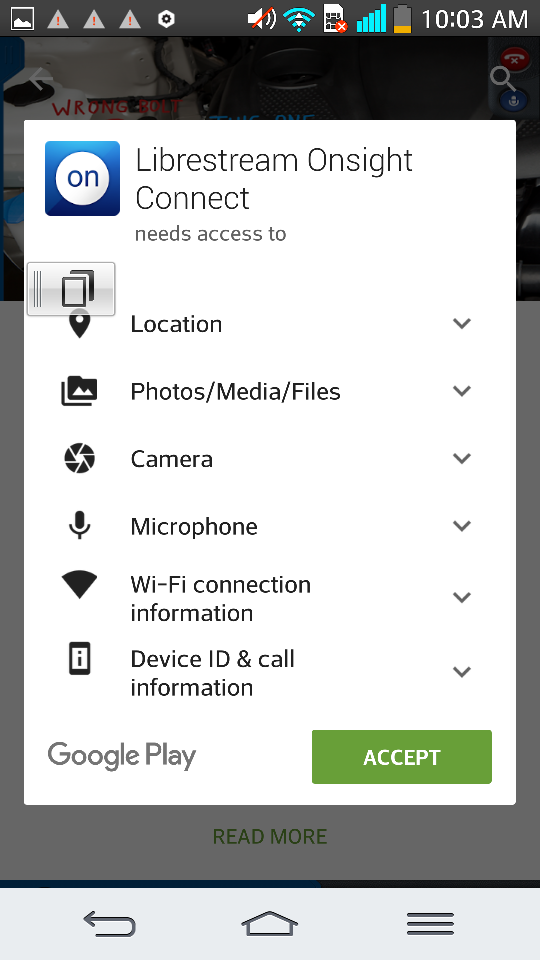
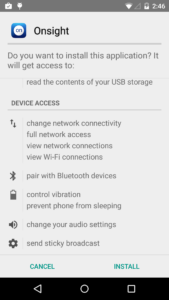
- Accept the terms for accessing Location, Photos, Camera, etc.
- The application will install…
- Select OPEN to launch Onsight Connect.
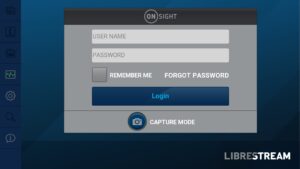
- Onsight Connect’s Login screen will appear. Enter your username and password.
Note: If you are launching the application from a Guest Invite Link you will be automatically logged in.
- Get Onsight Connect from the Playstore. Tap the “Install” button.
-
Download the latest APK (Modal)
Please perform the following steps to download and install Onsight Connect for Android:
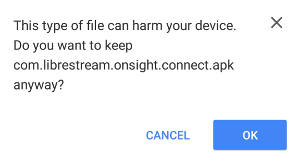
If required, confirm the download by tapping the “OK” button.
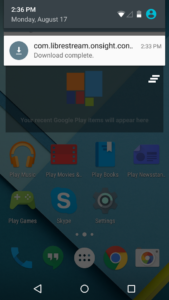
When the download has completed, select the “com.librestream.onsight.connect.apk” file from the status bar pull down menu.
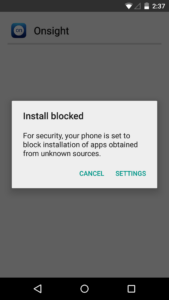
You will see an “Install Blocked” popup, select SETTINGS to allow downloads that do not originate from Google Play.
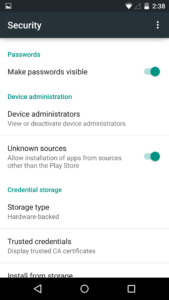
Under settings enable “Unknown sources” – Allow installs from sources other than the Google Play Store.
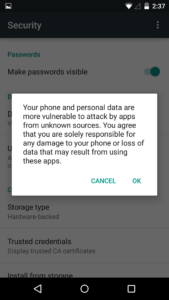
Confirm the Unknown Sources changes.
Select “INSTALL” to proceed.
You are now ready to launch Onsight Connect for Android!
-
Chinese Download page (Modal)
The Chinese download page is available here
Onsight Connect for Android is available in the following Chinese app stores:
Store Access Baidu Mobile Assistant app store Oppo Software Store Mobile app access only PP Assistant (Alibaba) Mobile app access only Samsung App Store Mobile app access only Tencent MyApp app store Wandoujia (Alibaba) Mobile app access only *Mobile App Access is provided by each Chinese app store using their own application.
-
Software Requirements (Modal)
Onsight Connect for Android requires smartphones running Android v6.0 or higher.
iOS v11.4.18(43787)
- App Store Download (Link)
-
Software Requirements (Modal)
Onsight Connect for iOS requires Apple devices running iOS v12 or higher.
Hololens v11.4.14(45188)
-
Software Downloads (Modal)
Below are links to the most recent version of Onsight Connect for Hololens software.
Onsight Connect for Hololens v11.4.14.45188
Download Onsight Connect from the Microsoft Store
What’s New:
- Adds an OPM Server field to the Login – Settings page. This is used for on-premises installations.
- Fixes an on premises issue where the client was incorrectly trying to contact a public server during login..
-
Software Requirements (Modal)
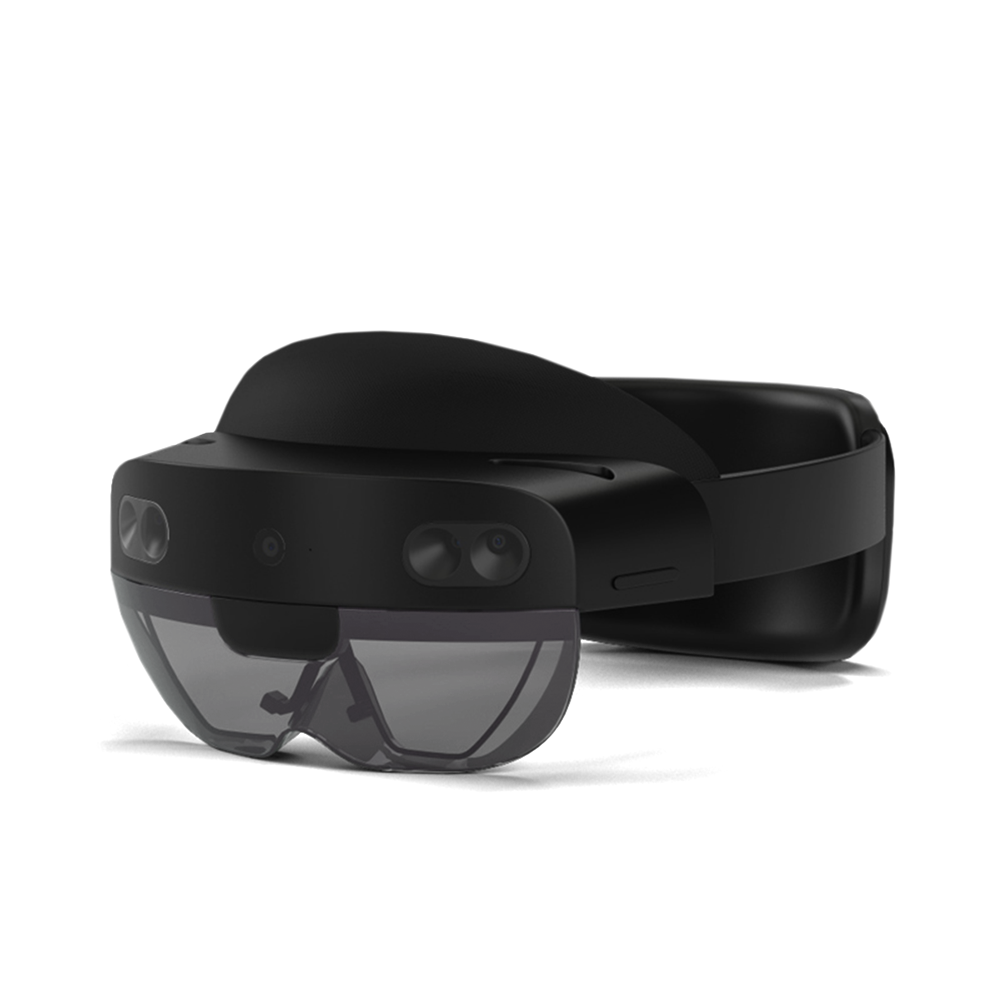
The minimum requirements for installation on Hololens 2 are:
Operating System: Windows.Holographic min version 10.0.10240.0 Network: Wireless network connections 5GHz is recommended.
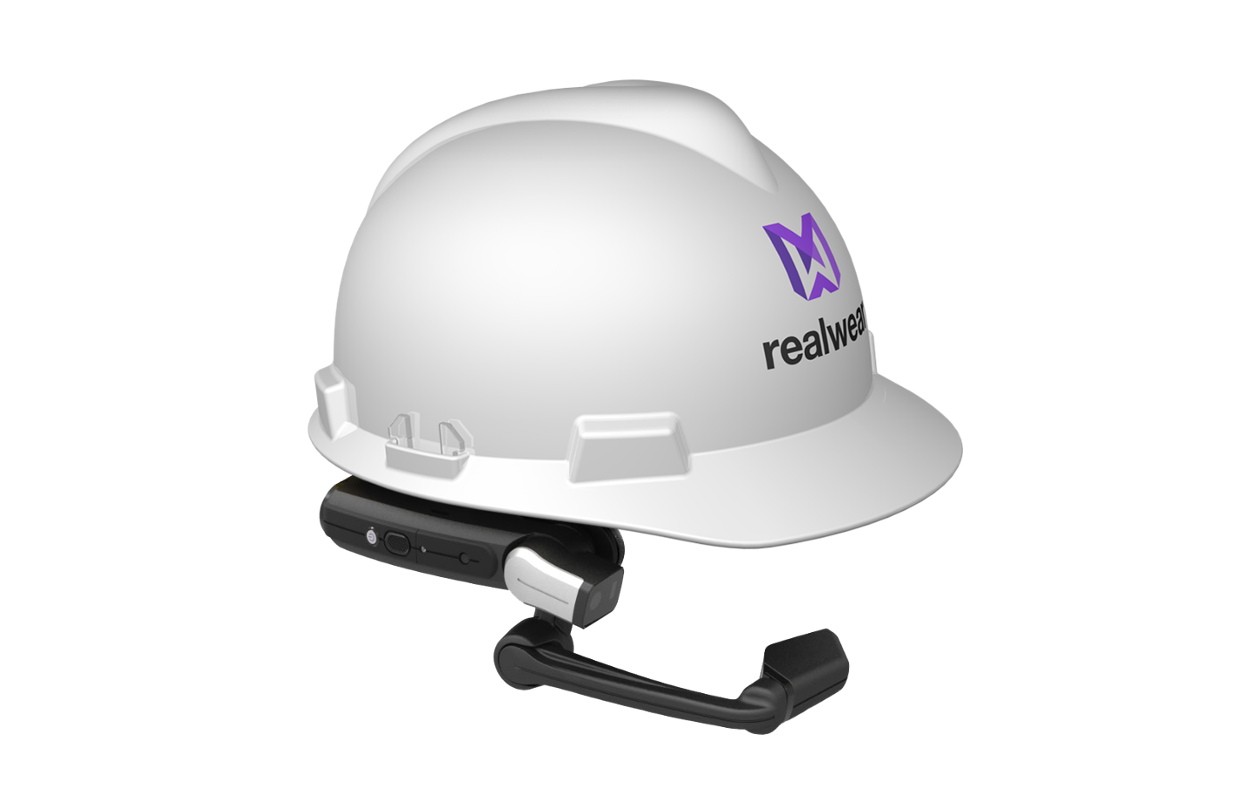
RealWear v11.4.18(43566)
- Download the latest APK (Link)
-
Software Requirements (Modal)
Onsight Connect for RealWear requires the RealWear Navigator 500 series, HMT-1 or HTM-1Z1 headset running version 8 or higher. The HMT device must be running v9.0.5c or higher in order to pair with the Onsight Cube.
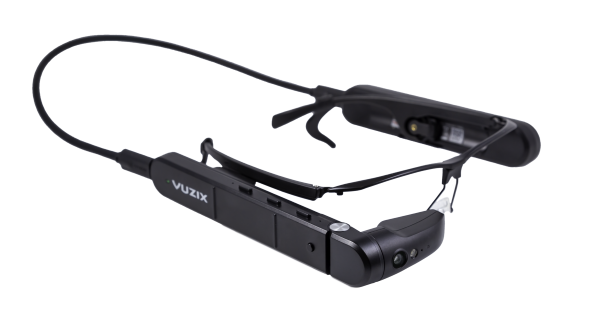
Vuzix M400/M4000 v11.4.1(43566)
- Download the latest M400/M4000 APK (Minimum OS v1.1.4 required) (Link)
-
Software Requirements (Modal)
Onsight Connect for Vuzix requires the M400 headset with minimum OS v1.1.4.
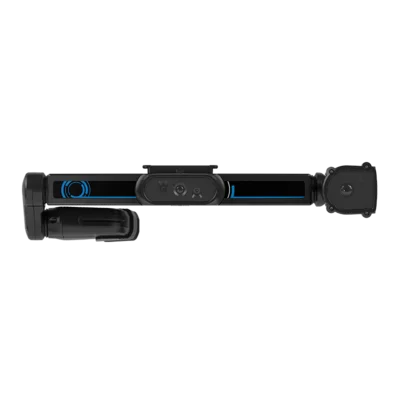
Iristick v11.4.18(43566)
- Download from Google Play (available for Smart-EX 02 smartphones only) (Link)
- Download the latest APK (Link)
-
Software Requirements (Modal)
Onsight Connect for Iristick requires the Ecom Visor-Ex 01 in combination with the Smart-EX 02 smartphone.
Language Support
-
List of supported languages on Onsight Clients. (Modal)
Onsight Connect supports the following languages:
- English
- French
- Chinese (Simplified)
- Japanese
- German
- Italian
- Portuguese (Portugal and Brazil)
- Spanish
- Swedish
- Russia
- Korean
Natural Language Processing (NLP) supports the following languages:
- Afrikaans, Arabic (Egypt), Arabic (Iraq), Armenian
- Bulgarian
- Catalan, Chinese (Cantonese), Chinese (Mandarin), Croatian, Czech
- Danish, Dutch
- English
- Filipino, Finnish, French, French (Canada)
- German, Georgian, Greek
- Hebrew, Hindi, Hungarian
- Italian
- Japanese
- Korean
- Norwegian
- Polish, Portuguese, Portuguese (Brazil)
- Romanian, Russian
- Slovak, Slovenian, Spanish, Swedish
- Thai, Turkish
- Ukrainian
- Vietnamese.
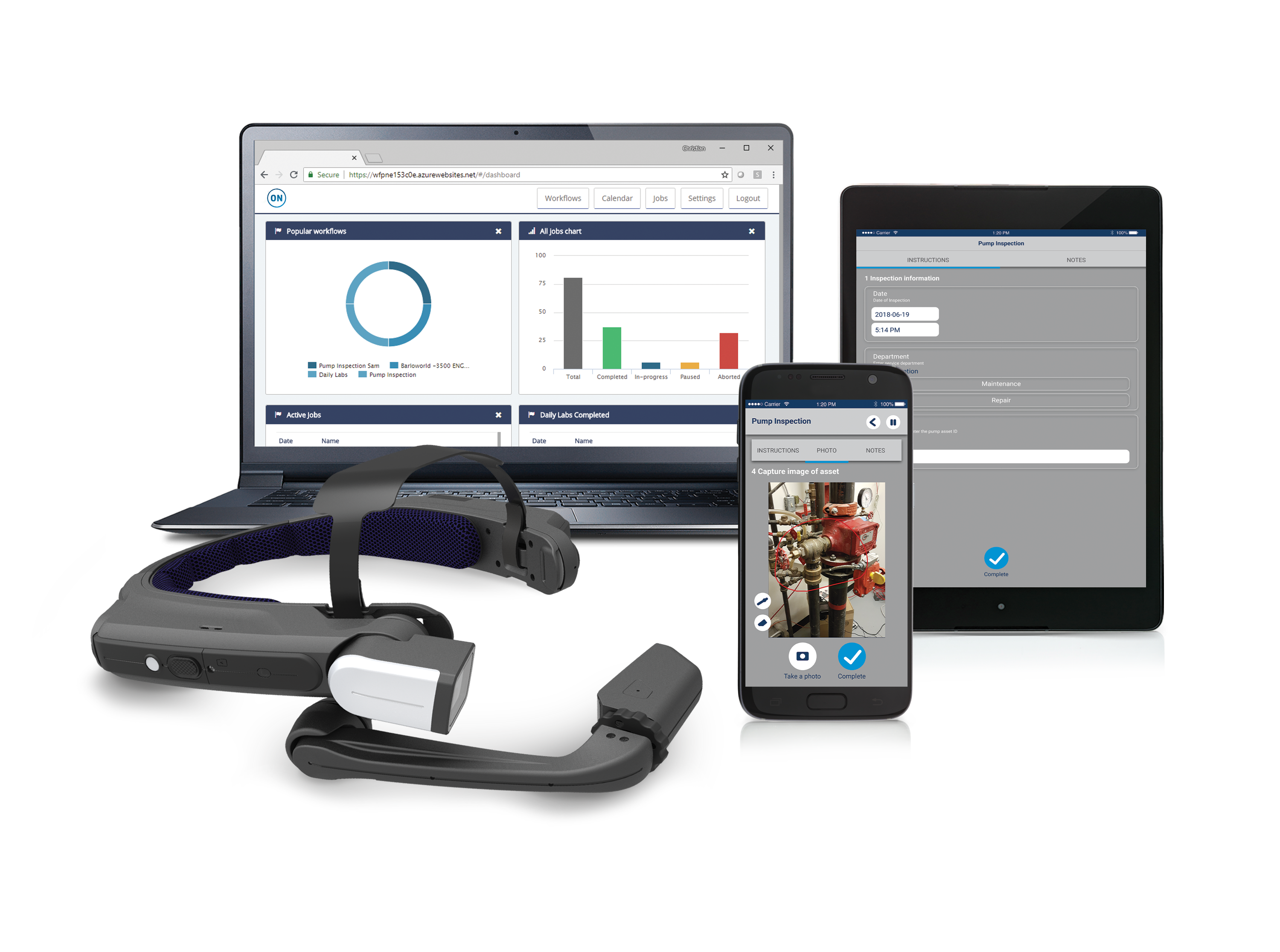
Onsight Platform Manager v11.4.17
Onsight Platform Manager
- OPM Admin Guide (PDF)
- OPM Reporting Tips (PDF)
-
OPM Training Session – Essentials (Video)
- HOW TO: Enable Custom Fields for Guest Invites (PDF)
- HOW TO: Add New Contacts for Wearables (PDF)
- OPM Message Customization (PDF)
- Onsight Platform Manager Settings Guide (Refer to Appendix: Best Practices in OPM Admin Guide) (PDF)
- Azure Setup for Single Sign-on with Onsight Admin Guide (PDF)
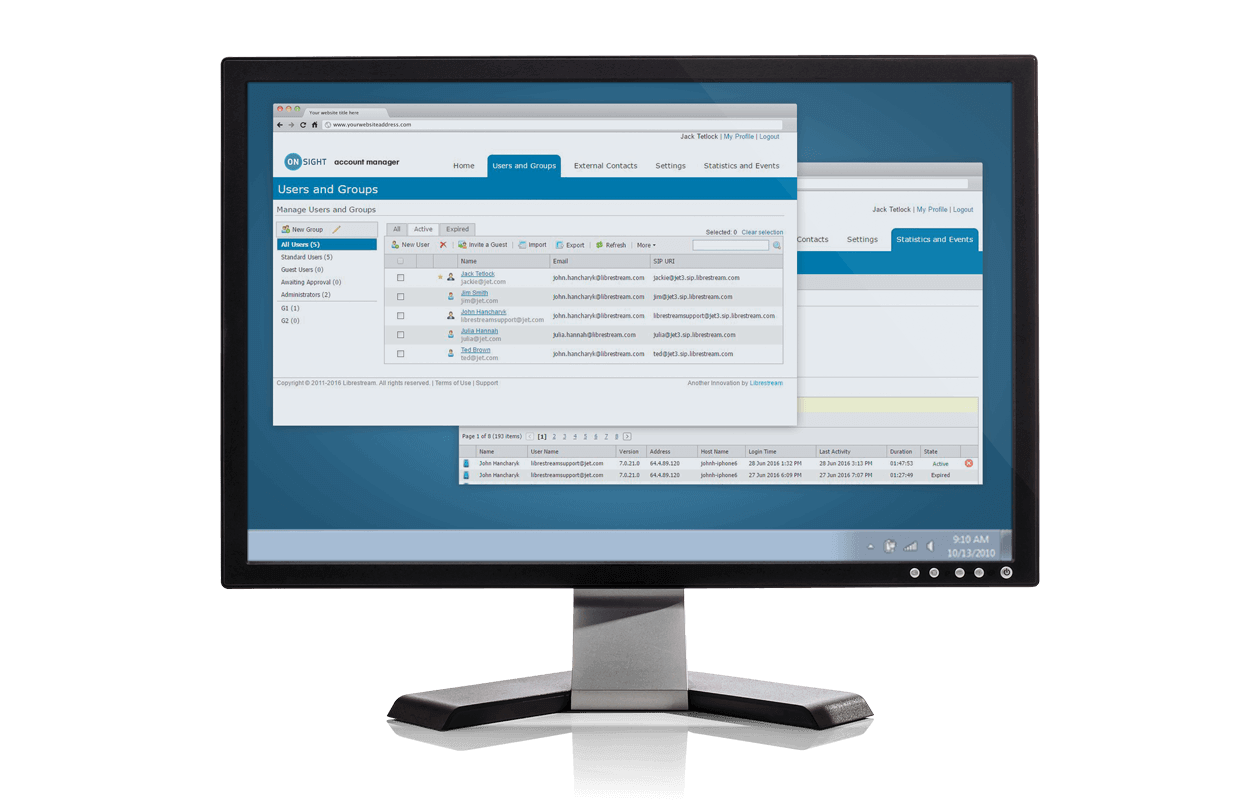
Onsight Flow
Android v2.38
-
Google Play Store Download Instructions (Modal)
Please perform the following steps to install Onsight Flow for Android from the Google Playstore:
- Get Onsight Flow from the Playstore. Tap the “Install” button.
- The application will install…
- Select OPEN to launch Onsight Connect.
- Accept the terms for accessing Location, Photos, Camera, etc.
- Onsight Flow’s Login screen will appear. Enter your teamname, username and password. Press Sign In.
- Get Onsight Flow from the Playstore. Tap the “Install” button.
-
Download the latest APK (Modal)
Please perform the following steps to download and install Onsight Flow for Android:
Download the APK here
If required, confirm the download by tapping the “OK” button.
When the download has completed, select the “com.librestream.onsight.flow.apk” file from the status bar pull down menu.
You will see an “Install Blocked” popup, select SETTINGS to allow downloads that do not originate from Google Play.
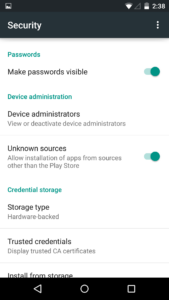
Under Settings-Security enable “Unknown sources” – Allow installs from sources other than the Google Play Store.
Confirm the Unknown Sources changes.
Select “INSTALL” to proceed.
You are now ready to launch Onsight Flow!




Administrators and Editors v2.7.8504
-
Download the Onsight Flow Builder (Modal)
Please perform the following steps to download and install Onsight Flow Editor:
Download the legacy version here
Run the MSI install file. You are now ready to launch the Flow Editor and begin creating workflows!
How to upload workflows:
Use the Onsight Flow Builder to create and validate the workflow.
Export the Workflow to a Zip file using the “Export to Zip” option in the Onsight Flow Builder menu.
On the same computer, login to the Onsight Flow Manager.
From the Workflows screen:
Select “Add Workflow” (the plus symbol) and choose the file that needs to be uploaded from your file system.
Enter details for the workflow and create the workflow.
RealWear v2.29
- Download the latest APK (Link)
-
Software Requirements (Modal)
v2.29.37522 Fixes black screen when launching the barcode scanner on the HMT by reducing background network activity when using 3rd party intents to other apps..
Onsight Connect for RealWear requires the RealWear HMT-1 or HTM-1Z1 headset running version 8 or higher. The HMT device must be running v9.0.5c or higher in order to pair with the Onsight Cube.
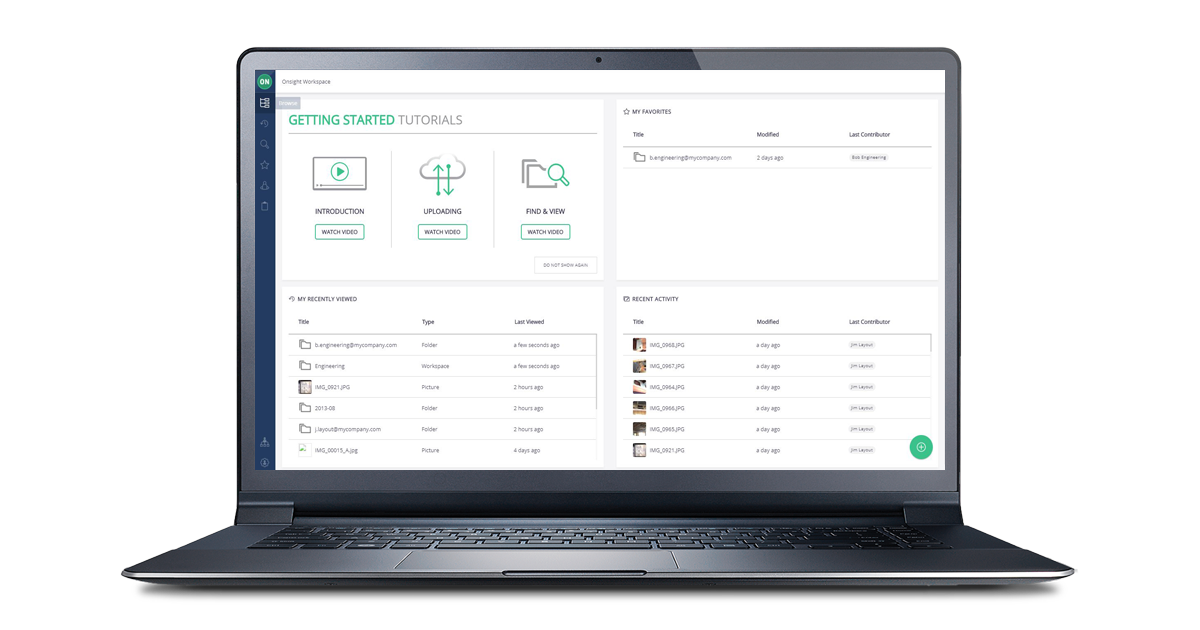
Onsight Workspace v11.4.16(31894)
Onsight Workspace
- Onsight Workspace Admin Guide (PDF)
- Onsight Workspace User Guide (PDF)
-
Software Requirements (Modal)
To access the web interface of Onsight Workspace the network must allow HTTPS (port 443). For more information, see the Onsight Workspace User Guide.
These browsers have been tested with full support:
- Google Chrome
- Safari v11 (iOS 10.2)
- Safari
- Microsoft Edge
Note: Internet Explorer 11 is not supported, Mozilla Firefox (video playback not supported)
Onsight Cube v2021.11.10.2133
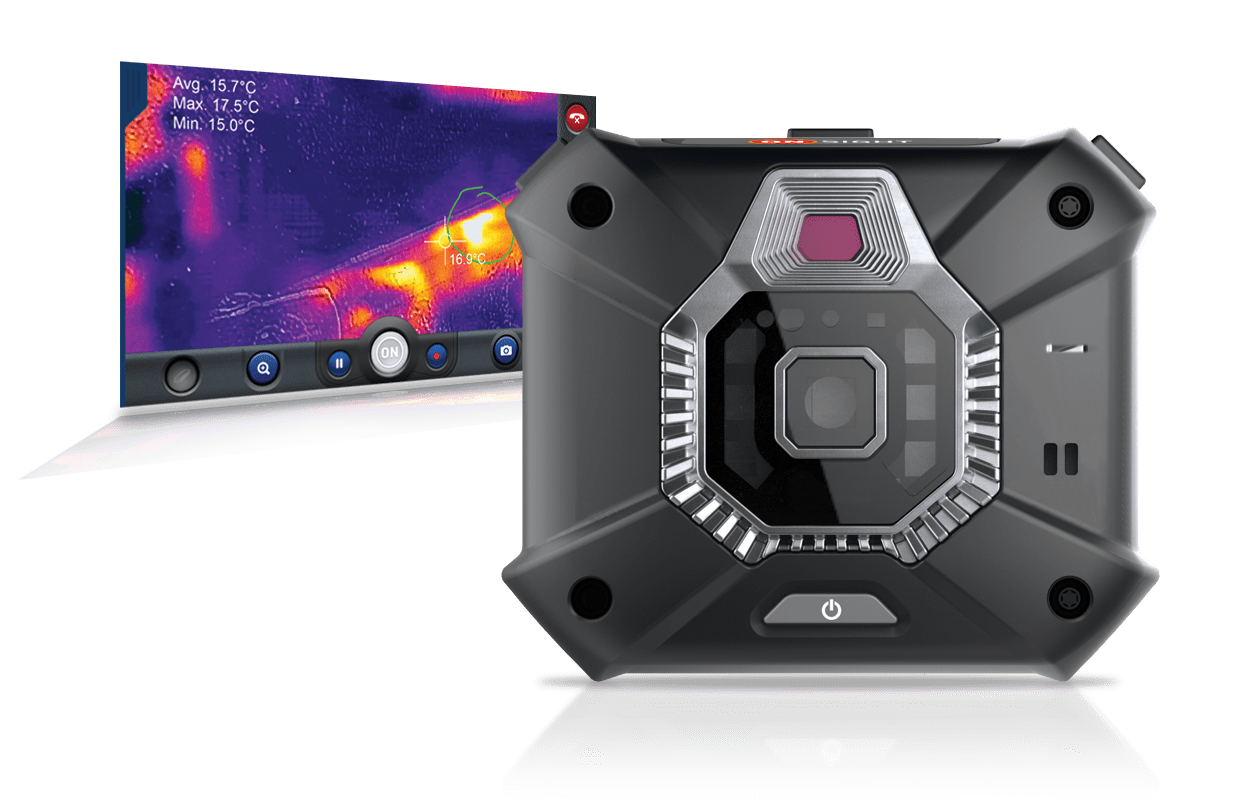
Onsight Cube
-
Onsight Cube Software Updates (Modal)
Onsight Cube software updates are distributed by Onsight Platform Manager. Connect your Cube to your Onsight Connect smartphone and select Settings-Cube-Check for Updates. Follow the on-screen instructions to complete the install.
Prior to using the Cube with OC for Windows v10.2, it is recommended you update the Cube’s firmware using your Onsight Connect smartphone.
WARNING: DO NOT POWER OFF THE CUBE DURING A FIRMWARE UPDATE. ONCE THE UPDATE HAS COMPLETED THE CUBE WILL REBOOT AUTOMATICALLY.
Onsight Hub v2019.3
Onsight Hub
- Release Notes (PDF)
-
Onsight 400R Collaboration Hub Firmware Updates (Modal)
Onsight 400R Collaboration Hub software updates are distributed by Onsight Platform Manager. Connect your Hub to your Onsight Connect smartphone and select Settings-Onsight Collaboration Hub-Check for Updates. Follow the on-screen instructions to complete the install.
- Onsight Collaboration Hub Product Specifications (Link)